
Parts
A scene in SculptForge can hold several separate meshes, called Parts (ZBrush users: SubTools): a body, eyes, teeth, a helmet and a sword can each live in their own Part. This chapter covers the Parts list, selecting, adding, hiding, reordering, merging and splitting Parts, and how they travel through files.
How Parts work#
- Only the active Part is sculpted, painted, masked or changed by a command. The others are drawn slightly darker and greyer so you can see which one you are working on.
- Each Part keeps its own mesh, mask, vertex paint, face groups, hidden faces, UVs and sculpt layers.
- Each Part has its own undo history. Ctrl+Z undoes the last change in the active Part, and switching Parts doesn't lose the history of the others.
- Adding, deleting, reordering, merging and splitting Parts are not undoable, as in ZBrush. Merges and deletes ask for confirmation first.
-
The title strip shows the active Part and its place in the list, for example
Part Helmet (2/5).
The Parts list#
The list is in Tool > Parts, which is open in the right tray by default.
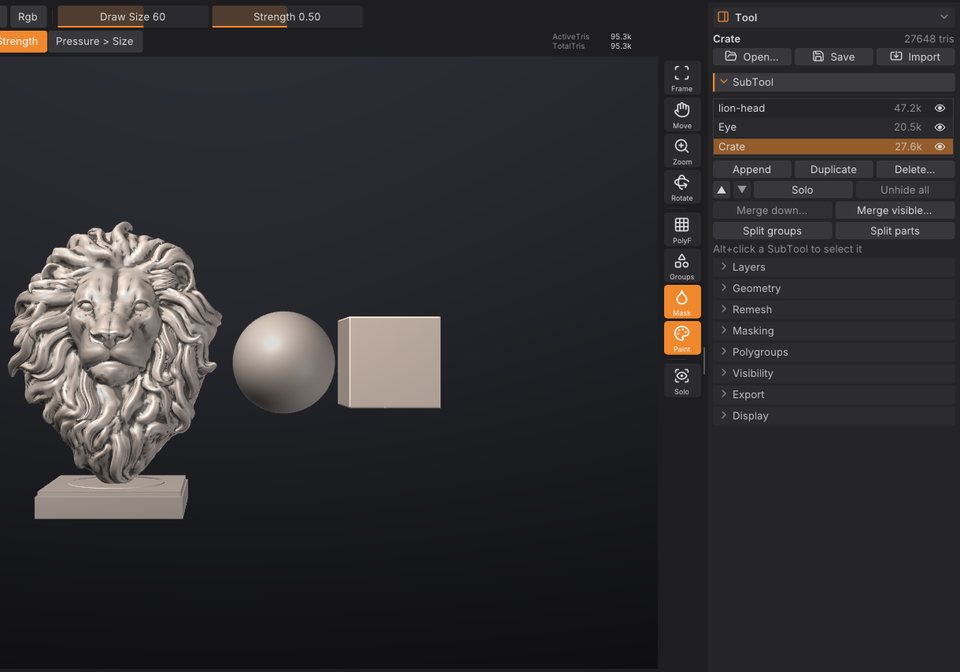
Each row shows a small picture of the Part, its name, its triangle count and an eye. The pictures are drawn from the model the viewport already has on the graphics card, so they cost almost nothing even on very dense Parts, and they catch up a moment after you stop changing a Part (not during a stroke).
| To | Do this |
|---|---|
| Select a Part | Click its row, or Alt+click it in the viewport; triple-click another Part in the viewport to select it and frame it |
| Rename it | Double-click the row (or right-click > Rename), type, press Enter |
| Hide or show it | Click the eye at the end of the row |
| Duplicate or delete it | Right-click the row > Duplicate or Delete... |
| See its vertex and triangle counts | Point at the row for a moment |
The list shows six rows and scrolls when there are more. Names are kept unique: renaming a Part to a name that is already taken adds a number.
Selecting a hidden Part shows it again, because you can't sculpt what you can't see.
Select a Part in the viewport#
Hold Alt and click another Part on the canvas. It becomes the active one and the list scrolls to it.
Alt+click only selects when you click a Part other than the active one and release without moving. If you drag instead, Alt keeps its usual meaning: an inverted stroke on the active Part, or a pan when you start off the model.
Add a Part#
Click Append and choose:
- Sphere, Cube or Plane: a new primitive placed beside the visible model (to the right, on +X), sized to about a third of the largest visible Part.
-
Insert on the model: choose a shape, then drag on the active Part's surface to add it there as a new face group (the drag sets its size and turns it). With Symmetry X, Y or Z on, a mirrored copy goes on the other side too, in the same undo step; a shape inserted right on a mirror plane isn't doubled. To insert your own mesh, choose Active Part's copy... and pick another Part (it stays as it is), or From file... and pick an
.obj,.plyor.glbfile; then drag as with the shapes. The mesh is centred, scaled so its largest side matches the drag, and stood on the surface along its own up (+Y) axis. Esc stops inserting. (Command:insert_mesh subtool=<name>orinsert_mesh file=<path>.) -
From file...: a model (
.obj,.fbx,.glb,.gltf,.ply,.stl,.GoZ,.usda,.usd,.usdz) or a project (.sfproj). A file with several objects adds one Part per object.
The new Part becomes the active one.
You can also add files as Parts from elsewhere:
- Import in the Tool palette header (or File > Import) adds a model file as a new Part.
- In the Library Tool tab, Shift+double-click a model, or right-click it and choose Append as Part.
Show, hide and solo#
- The eye on each row shows or hides that Part.
- Solo shows only the active Part. Click it again to bring the others back. The Solo button on the right shelf does the same.
- Unhide all shows every Part.
Hidden Parts aren't drawn, can't be selected with Alt+click, and are left out of exports.
Reorder Parts#
The up and down arrow buttons under the list move the active Part one place up or down. The order matters for Merge down and is the order objects are written to files.
Merge Parts#
- Merge down... merges the active Part with the one below it.
-
Merge visible... merges every visible Part into one new Part called
Merged. Hidden Parts stay as they are.
Merging keeps every attribute, gives each original mesh its own face groups (so you can split them again later) and matches sculpt layers by name. The merged Part starts with an empty undo history. A Part with subdivision levels is merged (or split) at the level it is on, which becomes the base of the result; the status line names the Parts that lost their levels.
Painted textures are kept too: the merged Part gets new Auto UVs and one texture, the size of the largest, holding each part's paint exactly (texture layers are flattened; parts without a texture are white). On big meshes the Auto UV takes a while. Scripts can skip it with keep_texture=false, which drops the textures.
Split a Part#
- Split groups makes one Part per face group. It is available when the active Part has more than one face group.
- Split parts makes one Part per disconnected piece, largest first.
Both replace the active Part with the pieces. Because a merge keeps each original mesh in its own face group, Split groups undoes a merge.
Extract a shell#
Extract, in Tool > Parts, makes a new Part from the masked part of the active one: a helmet from the top of a head, a strap, a sleeve, a piece of armour that fits the surface exactly. It works as in ZBrush:
- Mask the part (hold Ctrl and paint, or use Mask Rectangle / Mask Lasso; see Masking).
- Click Extract. The shell appears as a preview, a Part just below the active one.
- Change Thick, E Smt, Double, TCorne or TBorder and the preview follows. Click Accept to keep it.
| Setting | What it does |
|---|---|
| Thick | The shell's thickness as a share of the Part's size: 0.015 (the default) is 1.5%. Negative grows it inward; 0 makes a single-sided surface |
| E Smt | Smooths the extracted edge, which otherwise follows the mask's triangles in steps. 0 keeps it as masked |
| Double | Grows the shell both inward and outward from the surface |
| TCorne | Triangles instead of quads in the rim where the edge turns sharply (over 50 degrees), so tight corners don't get twisted quads |
| TBorder | The whole rim is triangles instead of quads |
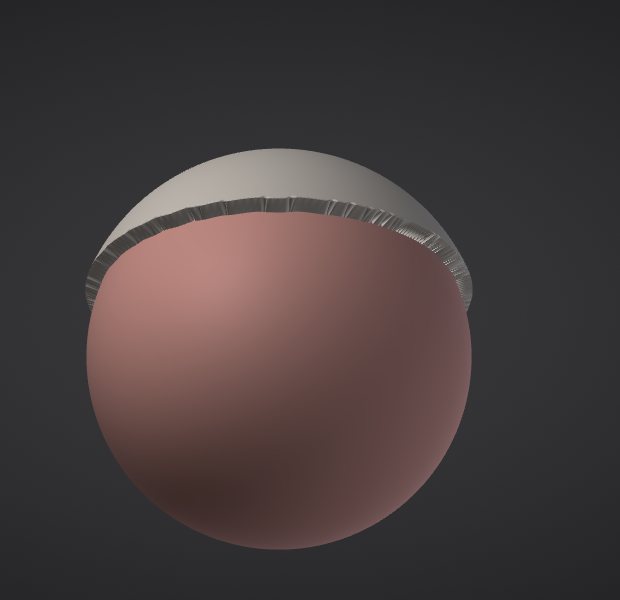
The new Part has three face groups, the outer surface, the inner one and the rim between them (a band of quads), so you can mask, hide or split them apart. Vertex Paint comes with it; hidden faces are left out. Accept is one undo step: Ctrl+Z on the source Part takes the extracted one away again, and redo brings it back. A preview you don't accept goes away as soon as you change the source Part or pick another one, and it is never saved.
Delete a Part#
Click Delete... (or right-click a row > Delete...) and confirm. The last Part can't be deleted, and a delete can't be undone.
Parts in files#
| Format | What happens to Parts |
|---|---|
Project (.sfproj) | Every Part is saved with its name, visibility, attributes, layers and active layer |
| OBJ | Each visible Part is an o object; on import, o objects become Parts and g groups become face groups |
| glTF / GLB | One node and mesh per visible Part, both ways |
| FBX | One model per visible Part (with LODs, an LOD group each), both ways |
| USD | One Mesh prim per visible Part, both ways |
| Send to ZBrush (GoZ-compatible exchange) | Each visible Part is sent to ZBrush as its own SubTool |
| PLY, STL, splat conversion | The visible Parts are merged into one mesh |
Opening a multi-object file replaces the scene with one Part per object. See Exporting for the details of each format.
Scripting#
Every Part action is a command, so you can use them in the console, scripts, Python and MCP agents. Parts are addressed by index (0 is the top of the list) or name; without either, the active one is used.
| Command | What it does |
|---|---|
subtool_list | List the Parts |
subtool_select index=1 | Make a Part active |
subtool_append type=cube | Add a primitive (sphere, cube, plane); path= adds a file; size= (0.05-2, default 0.35) |
subtool_duplicate | Copy a Part |
subtool_delete name=Helmet | Delete a Part |
subtool_rename to=Body | Rename a Part |
subtool_visibility visible=false | Show or hide (toggles when visible is left out) |
subtool_solo / subtool_show_all | Solo the active Part / show every Part |
subtool_move direction=up | Move a Part up or down the list |
subtool_merge_down / subtool_merge_visible | Merge |
subtool_split_groups / subtool_split_parts | Split |
extract thickness=0.02 smooth=5 double=false | Preview an Extract shell from the mask; tcorne / tborder for a triangle rim; accept=true keeps it at once |
extract_accept / extract_cancel | Keep or remove the Extract preview |
subtool_append type=sphere name=EyeL size=0.12; subtool_duplicate; subtool_rename to=EyeRSee also#
- Face Groups and visibility: hide parts of one Part
- Sculpt layers and blend shapes: layers belong to each Part
- Exporting: how Parts reach other applications
- Projects, autosave and snapshots