
The interface
SculptForge's window is laid out like ZBrush's: a canvas in the middle, shelves of the most-used controls around it, a bar of alphabetical palettes that hold every function, and trays at the sides where palettes can stay open. This chapter walks through each region, the pop-up pickers, the LightBox, the built-in help, and how to rearrange the interface and keep your changes.
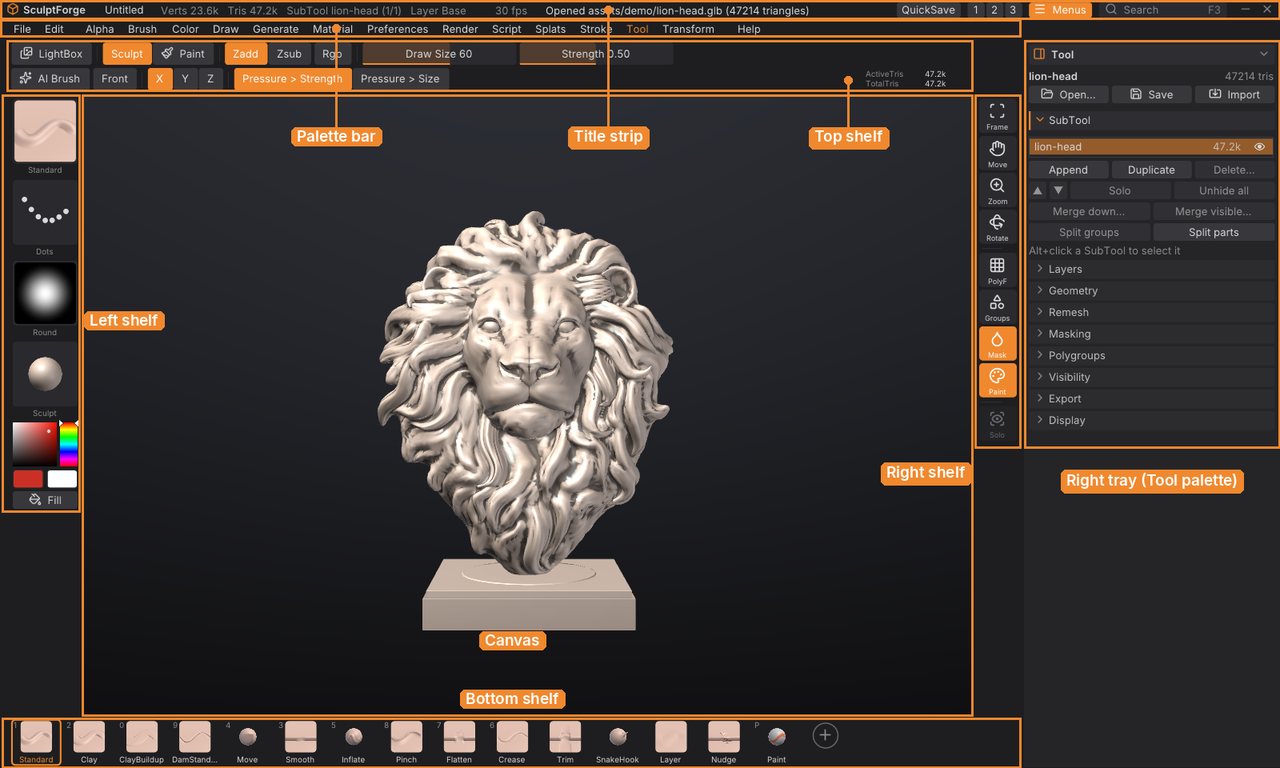
The regions at a glance#
| Region | Where | What it holds |
|---|---|---|
| Title strip | Top edge | Document name, scene statistics, status messages, QuickSave, layout presets, Menus, Search |
| Palette bar | Under the title strip | The 16 palettes, which hold every function |
| Top shelf | Above the canvas | LightBox, Sculpt/Paint, Zadd/Zsub, Rgb, Draw Size, Z Intensity, symmetry, pressure |
| Left shelf | Left of the canvas | Brush, Stroke, Alpha and Material tiles, the colour picker |
| Canvas | Centre | The 3D view; strokes and navigation start only here |
| Right shelf | Right of the canvas | Frame, Move, Zoom and Rotate, display toggles, Solo |
| Bottom shelf | Below the canvas | Your quick brushes |
| Trays | Far left and far right | Palettes you keep open; the right tray holds the Tool palette by default |
Press Tab to hide the shelves and trays for a bigger canvas, and again to bring them back. The palette bar stays, so every function is still one click away.
The title strip#
From left to right:
-
SculptForge and the document name ("Untitled" until you save). A
*after the name means there are unsaved changes; click the name to save (Ctrl+S). - Scene statistics: vertices and triangles across all SubTools, the active SubTool and its position ("SubTool Body (2/5)"), the active sculpt layer ("Layer Base" when you sculpt the base mesh), the number of Gaussian splats when a capture is loaded, and the frame rate.
- The status message: the result of the last command or action. Errors show in red for a few seconds. Point at a long message to read all of it.
- QuickSave: saves a timestamped copy of the whole scene to your library without touching your project file (see Projects, autosave and QuickSave).
- 1, 2, 3: the layout presets (see Layout presets).
- Menus: shows or hides the palette bar.
- Search (F3): opens the command palette.
- Minimize and Close at the far right. Close asks to save changes first, as Ctrl+Q does.
Palettes#
Every function in SculptForge lives in one of 16 palettes. Click a palette's name in the palette bar and it drops down under the name. Click another name to switch, or press Esc or click outside to close it.
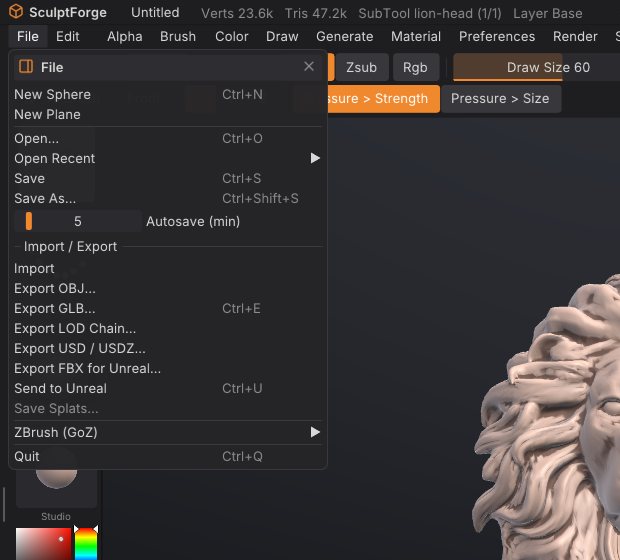
The palette bar lists File and Edit first and Help last, where other desktop applications put them, and the rest in alphabetical order. If you prefer ZBrush's strict A to Z order, turn on Preferences > Interface > Palettes strictly A-Z (ZBrush order).
| Palette | What's in it |
|---|---|
| File | New Sphere, New Plane, Open, Open Recent, Save, Save As, autosave interval, Import and every export (OBJ, GLB, LOD chain, USD/USDZ, FBX for Unreal, Send to Unreal, splats), ZBrush (GoZ), Quit |
| Edit | Undo and Redo (with the name of the step), Paste brush |
| Alpha | The brush alphas: Round, Square, Noise, images from your library, Load image, Invert loaded image |
| Brush | AI Brush (Brush Lab), Community brushes, Paste brush, your custom brushes, Front faces only, Invert (Alt), the recipe editor for a custom brush, and every brush as a thumbnail grid with a filter |
| Color | The Paint brush, RGB while sculpting, the paint colour and swatches, Fill, Fill masked, Cavity, Clear, Show polypaint |
| Draw | Draw Size, Z Intensity, RGB Intensity, Focal Shift, Sculpt/Paint, Zadd/Zsub, Rgb, Front, and the tablet options (Pressure > strength, Pressure > size) with a pen readout |
| Generate | Generate 3D (image or text to 3D), Relief, Inflate and Stamp from an image, and the AI brush provider settings |
| Material | The seven MatCap materials (Sculpt, the default, first) and Studio, Base colour |
| Preferences | Config, Interface, Input, Hotkeys, LightBox, Tablet, Performance, Updates and Autosave sub-palettes (see Customizing the interface) |
| Render | Wireframe, Show Mesh, Show Polypaint, Show Mask, Show Polygroups, Show Splats, Frame, Fullscreen |
| Script | Console, Run script file, Copy session as script, Clear console |
| Splats | Gaussian splat tools: show, flip, turn, fit, clean floaters, Make sculptable, sculpt to splats, save, clear |
| Stroke | The stroke types (Dots, DragRect, Spray, LazyMouse) and their settings |
| Tool | The active SubTool with Open, Save and Import, and the SubTool, Layers, Paint Layers, Geometry, Remesh, Masking, Polygroups, Visibility, Export and Display sub-palettes |
| Transform | Draw, Move, Scale and Rotate (the Gizmo 3D with its pivot, axes, options and numeric entry), Symmetry X, Y and Z, Frame, Solo, PolyF |
| Help | Controls, User Guide, What's New, Command palette, Website & documentation, Report a problem, About SculptForge |
Sub-palettes#
Large palettes are divided into sub-palettes: headers you click to open or close. The Tool palette is the main example (SubTool, Layers, Geometry and so on). By default opening one sub-palette closes the others in the same palette, which keeps the palette short. Shift+click a header to open it without closing the others, or turn off Preferences > Interface > One sub-palette open.
Trays#
The trays are columns at the far left and far right of the window where palettes stay open while you work. The right tray is open by default and holds the Tool palette; the left tray starts closed and empty.
- Put a palette in a tray: open it from the palette bar and click the tray icon at the left of its header. It goes into the right tray; Shift+click the icon to put it in the left tray. You can also drag the icon onto a tray.
- Take it out again: click the tray icon in its header inside the tray. The palette returns to the bar.
- Collapse it in place: click its title (or the arrow at the right of the header).
- Find it: a palette that is in a tray shows its name in orange in the palette bar. Clicking the name scrolls the tray to the palette and flashes its header.
- Open or close a tray: click its divider, the thin strip with a grip between the tray and the shelves. Drag the divider to make the tray wider or narrower (240 to 480 pixels).
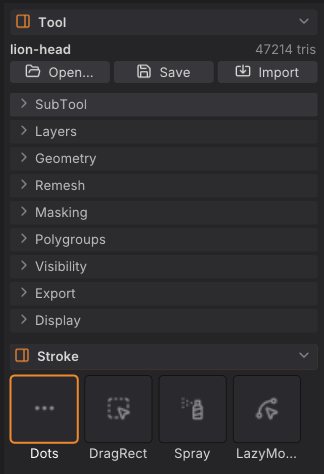
When a tray holds several palettes, Preferences > Interface > Auto collapse left tray (on by default) and Auto collapse right tray (off by default) collapse the other palettes when the one you open would not fit.
When you open a Gaussian splat capture, the Splats palette moves into the right tray by itself.
The shelves#
Shelves surround the canvas and hold the controls you use all the time. Point at anything with Ctrl held to see what it does. Right-click an item for Remove from shelf; see Customizing the interface to add items.
Top shelf#
First row:
- LightBox (,): shows or hides the LightBox.
- Sculpt / Paint (P): brushes change the shape, or paint colour without sculpting.
- Zadd / Zsub: brushes add to or subtract from the surface. Holding Alt flips it for one stroke.
- Rgb: sculpt brushes paint the colour at the same time.
- Draw Size: the brush radius in screen pixels (2 to 800).
- Z Intensity: how strongly each dab changes the surface (1 to 100). While Shift is held it shows Smooth's own value.
Second row:
- AI Brush: opens Brush Lab (see Brush Lab and sharing brushes).
- Front: front faces only, so brushes leave the far side of thin parts alone.
- X, Y, Z: symmetry across each axis (X toggles X).
- Pressure > Strength and Pressure > Size: what pen pressure controls.
- ActiveTris / TotalTris at the right: the triangles you can see and sculpt (visible SubTools, hidden parts left out) and the total in the scene.
Draw Size and Z Intensity are sliders with the label inside, as in ZBrush: drag along them, or Ctrl+click to type a value.
Left shelf#
Four large tiles, each showing the current choice. Click one to open its pop-up picker:
- Brush: the active brush, with a rendered preview.
- Stroke: Dots, DragRect, Spray or LazyMouse.
- Alpha: the brush's stamp shape.
- Material: how the model is shaded in the view.
Under them is the colour picker for polypaint (a saturation/value square and a hue strip), two swatches (the main and second colour; click either to swap them, like ZBrush's Alternate) and Fill, which fills the unmasked area with the main colour.
Right shelf#
- Frame (F): fits the model in the view.
- Move, Zoom, Rotate: drag on these buttons to pan, zoom and orbit the view, as in ZBrush.
- PolyF (Shift+F): shows the mesh's polygons: quads as quads, triangles as triangles.
- Groups: colours each polygroup.
- Mask: darkens masked areas (on by default).
- Paint: shows polypaint colours (on by default).
- Solo: shows only the active SubTool (available with two or more SubTools).
- Splats: shows or hides a Gaussian splat capture (only shown while one is loaded).
Toggles that are on have an orange background. See Navigating the view for the camera.
Bottom shelf#
A row of quick brushes: Standard, Clay, ClayBuildup, DamStandard, Move, Smooth, Inflate, Pinch, Flatten, Crease, Trim, SnakeHook, Layer, Nudge and Paint. The small digit in a tile's corner is its shortcut (1 to 9 and 0 select the first ten built-in brushes, P is Paint). The active brush has an orange outline.

- Add a brush: click + at the end of the shelf and pick any brush, built-in or one of your own. Or right-click a brush in the brush picker and choose Add to bottom shelf. Custom brushes show a small sparkle in the corner.
- Remove a brush: right-click its tile and choose Remove from shelf.
Pop-up pickers#
Pickers are pop-up grids of thumbnails. They open beside the left-shelf tile you click, or under the mouse when you use a key. They close when you pick something, press Esc or click elsewhere. Pointing at a tile for a moment shows Quick Info: a large preview and a description.
Brush picker#
Press B (or click the Brush tile). The picker shows a Recent row, then Built-in, Custom (your brushes and Brush Lab creations) and Library (.sfbrush files in your library that aren't loaded yet; picking one loads it).
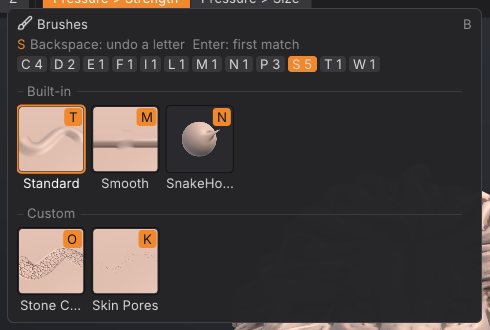
Choose a brush with the keyboard the ZBrush way:
- Press B.
- Type the first letter of the brush. Only the brushes starting with that letter stay, and each shows an orange letter: the next key that tells it apart.
- Press that orange letter to pick the brush. For example B S T picks Standard.
Backspace takes back a letter and Enter picks the first match. If no name starts with what you typed, the picker falls back to names that contain it. The letter chips along the top (with a count for each letter) filter by a click as well.
Right-click a brush for Add to bottom shelf and, for custom brushes, Copy brush code, Rename..., Save as .sfbrush..., Delete... and Reveal in folder (see Brush Lab and sharing brushes).
Stroke, Alpha and Material pickers#
- Stroke (click the Stroke tile): Dots, DragRect, Spray and LazyMouse, with Scatter for Spray and Lazy radius for LazyMouse. See Sculpting and brushes.
- Alpha (click the Alpha tile): Round, Square and Noise, the image alpha you loaded, images in your library's Alphas folder, Load image... and Invert loaded image.
- Material (M, or click the Material tile): the MatCaps and Studio. Point at a material to preview it on the model; click to keep it. Closing the picker without clicking puts the old material back. See Polypaint and materials.
Sliders at the cursor and the QuickMenu#
As in ZBrush, press S for a Draw Size slider under the mouse, U for Z Intensity, I for RGB Intensity or O for Focal Shift. Drag the slider, or type a number and press Enter (Esc cancels). The pop-up closes when you release the slider. [ and ] make the brush 10% smaller or larger at any time. Space opens the QuickMenu with all of them and the brush, stroke, alpha and material (see The QuickMenu).
The LightBox#
The LightBox is a strip of thumbnails across the top of the canvas for browsing everything you can load. Press , (comma) or click LightBox on the top shelf to show or hide it. It opens on its own at start-up (see Preferences).
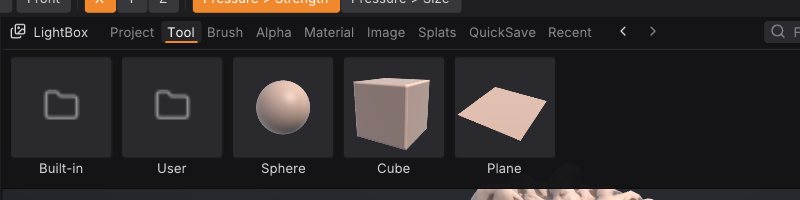
| Tab | Shows | Double-click |
|---|---|---|
| Project | Projects (.sfproj) in your library and recently opened projects | Open the project |
| Tool | Sphere, Plane and Cube, and model files in your library | Open (replaces the scene) |
| Brush | Every brush: built-in, custom and .sfbrush files | Select or load the brush |
| Alpha | Round, Square, Noise and images in your Alphas folder | Use as the brush alpha |
| Material | The MatCaps and Studio | Use the material |
| Image | Reference images in your library | A menu: Generate 3D, relief, inflate, project onto the model, use as alpha |
| Splats | Gaussian splat captures (.ply, .splat) | Open the capture as a reference |
| QuickSave | The autosave and your QuickSaves, newest first | Open it |
| Recent | Recently opened files of every kind | Open it |
Working with the strip:
- Shift+double-click a model, project or primitive to append it to the scene as a new SubTool instead of replacing the scene.
- Drag sideways (or use the mouse wheel) to scroll through the strip. A drag of more than a few pixels scrubs, so a plain click still selects.
- Drag a tile down out of the LightBox onto the canvas to load it, like a double-click.
- Folders open with a double-click; the first tile inside a folder goes back up. The arrows at the top go back and forward through tabs and folders, and the breadcrumb shows where you are.
- Type in Filter to show only items whose names contain the text.
- Choose 1 to 4 rows of thumbnails.
- Open folder... adds a folder of your own to the root of every tab.
- On the QuickSave tab, Save now makes a QuickSave.
- Right-click a tile for Open, Append as SubTool, the image actions, Show in file manager and Refresh thumbnail.
At the root of the Tool and Image tabs is a Built-in folder (the models and images that ship with SculptForge, such as the demo lion head), and the Project, Tool, Brush, Alpha, Image and Splats tabs have a User folder, your library folder (Documents/SculptForge by default). To use a different library folder, choose it in Preferences > LightBox > Library folder.
Getting help on anything#
Ctrl-hover help#
Hold Ctrl and point at any button, slider, tile or shelf item. A box shows the item's name, its shortcut as keycaps, what it does, where it lives (for example "Tool > Geometry") and the script command it runs.
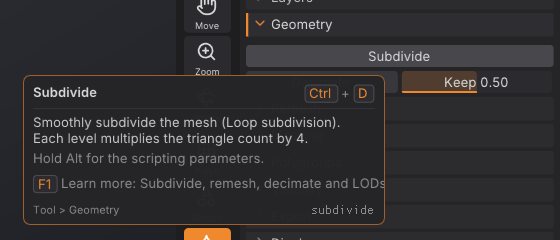
Hold Ctrl+Alt instead to see the scripting reference for items that run a command: the command's usage line and each parameter with its type and description. This is the same information the console, sculptforge-cli and AI agents use.
Without Ctrl, icon-only buttons and labels that don't fit show their name after a short delay (Preferences > Interface > Tooltip delay). Turn Ctrl-hover help off with Preferences > Interface > Popup Info (Ctrl+hover help), and make the box more or less see-through with Popup Info opacity.
The Controls sheet#
Press F1 (or Help > Controls) for the Controls window. The Keyboard tab lists every action that has a shortcut, grouped by palette and generated from the actions themselves, so it always shows your current keys. The Mouse & pen tab lists the gestures. Type in the filter field to search both. Double-click a row on the Keyboard tab to give that action a new key.
This guide#
Help > User Guide (Shift+F1) opens this guide in its own window: the contents on the left (the open chapter lists its sections), the chapter on the right, and links between chapters.
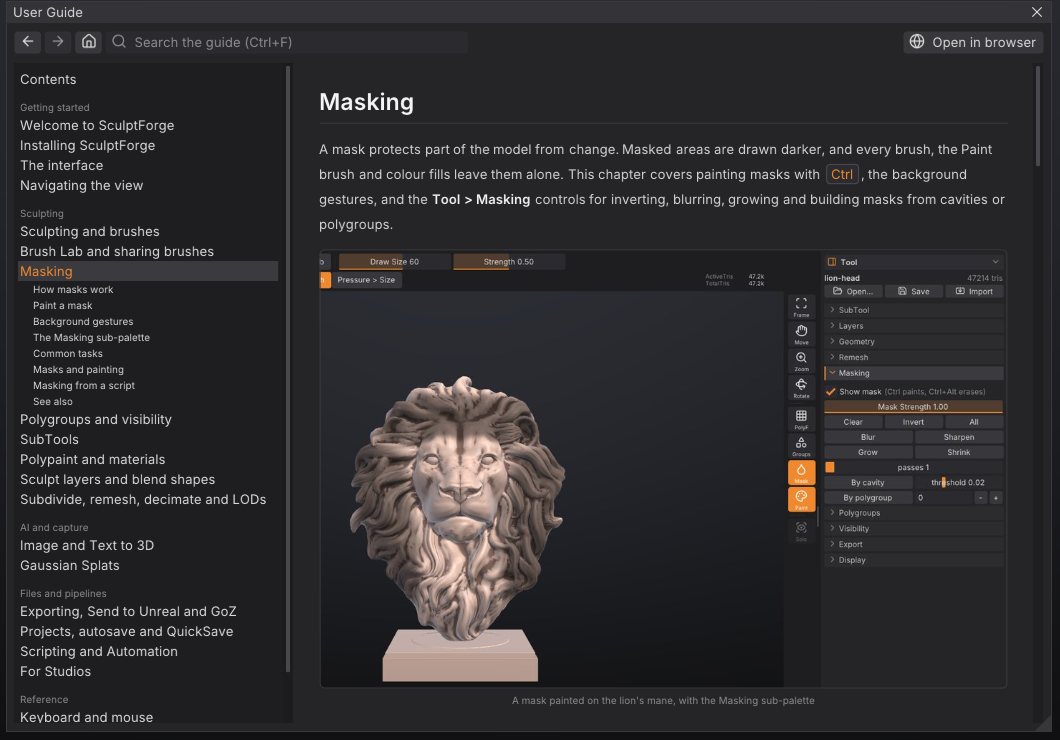
- Search: type in the search box (Ctrl+F) to find every section that mentions all of your words. Click a result to jump there; the words are marked on the page. Esc clears it.
- Back and forward: the arrow buttons, Alt+Left / Alt+Right, or the back and forward buttons of your mouse.
- From any control: while Ctrl-hover help is showing, press F1 (keep Ctrl held) to open the chapter about that control. The help box shows which chapter it is ("Learn more: ...").
- Code blocks have a Copy button, and Open in browser shows the same page on the SculptForge website.
The guide is built into SculptForge, so it works offline and always matches your version.
The command palette#
Press F3 (or Ctrl+Shift+P, or click Search in the title strip) to find any action or command by name and run it. It opens at the top centre of the canvas.
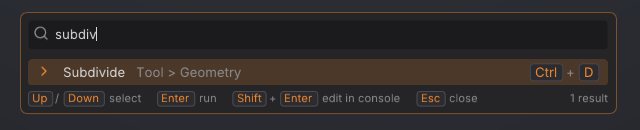
- Type part of a name, a palette or a word from the description. The search is forgiving: letters in order are enough ("sbdv" finds Subdivide), and every word you type must match somewhere.
- Each row shows the action, its palette and its shortcut.
- Up and Down (or Page Up and Page Down) choose a row, Enter runs it and Esc closes the palette.
- With nothing typed, the palette lists the actions you used most recently.
-
Commands with a required parameter (for example
image_relief path=) open in the console with the name already typed. Other commands run with their default values; Shift+Enter sends a command with parameters to the console instead, so you can set them first.
Everything scriptable is in the command palette, including commands that have no button in the interface.
The console#
Press ` (the backtick key, left of 1 on US keyboards) to open the console, a strip between the canvas and the bottom shelf. It works like ZBrush's ZScript window:
- Every command you run, from a button, a key, the command palette, a script or an AI agent, appears as a script line followed by its result. Errors show in red.
-
Type a command and press Enter: for example
remesh resolution=200orsubdivide; decimate ratio=0.5. Tab completes command and parameter names, Up and Down recall earlier lines, andhelp(orhelp remesh) explains commands. - Drag the console's top edge to make it taller or shorter.
- The Script palette has Run script file..., Copy session as script (every command you ran this session, ready to replay, which makes it a macro recorder) and Clear console.

See Scripting and automation for the command language, scripts and headless use.
Customizing the interface#
Everything about the layout can change: which palettes sit in the trays, what's on each shelf, and which keys do what. As in ZBrush, changes last until you quit unless you store them with Store Config.
Move, add and remove shelf items#
- Open Preferences > Config and turn on Enable Customize. The shelves get a dashed orange outline and the status line reads "Customize: Ctrl+Alt+drag to move or remove items".
-
Hold Ctrl+Alt and drag any button, slider or tile:
- onto a shelf to put it there (an orange line shows where it will go), which is how you add buttons from palettes to a shelf;
- along its shelf, or to another shelf, to move it;
- off the shelves (onto the canvas, for example) to remove it.
- Turn Enable Customize off when you're done, and press Ctrl+Shift+I to keep the result.
Right-clicking a shelf item and choosing Remove from shelf works without Customize mode.
Assign shortcuts#
- Hold Ctrl+Alt and click any button (with Customize off), then press the key you want. Esc cancels and Backspace removes the button's shortcut.
- Or open Preferences > Hotkeys, find the action (there's a filter), click its key button and press the new key. Keys you changed show in orange. Default shortcuts undoes every change.
- Or double-click a row in the Controls window (F1).
If the key already belongs to another action, it moves to the new one (as in ZBrush) and the status line says which action lost it.
Store Config and friends#
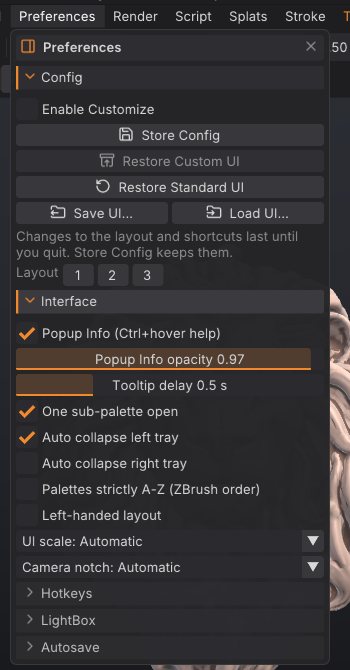
All in Preferences > Config:
| Item | What it does |
|---|---|
| Store Config (Ctrl+Shift+I) | Keeps the current layout, shortcuts and interface preferences for future sessions |
| Restore Custom UI | Goes back to what the last Store Config saved |
| Restore Standard UI | Goes back to the built-in layout and default shortcuts (Store Config afterwards to make it stick) |
| Save UI... | Saves the layout, shortcuts and preferences to a .json file you can share |
| Load UI... (Ctrl+L) | Loads such a file (Store Config afterwards to keep it) |
The first time you change the layout in a session, the status line reminds you once: "Layout changed - Ctrl+Shift+I to keep it". What a session changes by itself (the console and LightBox being open, the LightBox tab) doesn't count as a layout change.
Layout presets#
The 1, 2 and 3 buttons in the title strip (also in Preferences > Config) switch between three layouts:
- Standard: the Tool palette in the right tray and shelves around the canvas.
- Sculpt: both trays closed, for the largest canvas.
- Wide: Brush, Stroke and Alpha in the left tray, Tool and Material in the right tray.
A preset changes the layout only (the console, LightBox and left-handed setting stay as they are). Store Config keeps it.
Interface preferences#
Preferences > Interface:
| Setting | Default | What it does |
|---|---|---|
| Popup Info (Ctrl+hover help) | On | Ctrl-hover help boxes |
| Popup Info opacity | 0.97 | How solid the help box is |
| Tooltip delay | 0.5 s | How long to point at an icon-only button before its name appears |
| One sub-palette open | On | Opening a sub-palette closes the others in that palette |
| Auto collapse left tray / right tray | On / Off | Collapse other palettes in the tray when one wouldn't fit |
| Palettes strictly A-Z (ZBrush order) | Off | Strict alphabetical palette bar instead of File and Edit first, Help last |
| Left-handed layout | Off | Mirrors the shelves and trays: tools on the right, navigation on the left |
| UI scale | Automatic | Size of text and controls (100% to 200%); takes effect at the next start |
| Camera notch | Automatic | Keeps the interface below a laptop's camera notch in fullscreen (see below) |
Preferences > Input sets the key Style: ZBrush (the default) or SculptForge, which brings back the keys of SculptForge 0.6 and earlier: 1 to 9 and 0 pick the first ten brushes (9 is QuickSave in the ZBrush style), I opens Z Intensity like U, and Ctrl+drag on the background zooms when nothing is masked. Rotation chooses free rotation (ZBrush) or a turntable. See Coming from ZBrush.
Preferences > LightBox has Show at startup (on by default), the number of Rows, Placement (along the top of the canvas, or at the bottom above the bottom shelf) and the Library folder. Preferences > Autosave sets how often a recovery copy is saved (see Projects, autosave and QuickSave).
Fullscreen, the palette bar and the camera notch#
-
F11 (or Render > Fullscreen) fills the screen with SculptForge; press it again to go back to a window.
sculptforge --fullscreenstarts that way. - Menus in the title strip hides the palette bar; click it again to bring it back.
- Tab hides the shelves and trays.
- On MacBooks with a camera notch, SculptForge keeps the interface below the notch when it fills the screen and fills the band beside the notch with the shell colour. Automatic asks macOS for the safe area (on Linux it recognises a notched MacBook display); Always reserve always keeps a band free at the top, whatever the display; Off uses the full height.