
What's new
What changed in each version of SculptForge, newest first, with links to the chapters that explain it. This chapter opens by itself the first time you start a new version; you can always find it again under Help > What's New. Every detail is in the changelog.
Version 0.9.0#
Maquette to performance: scan an object or a clay maquette with your phone, turn the scan into a clean mesh you can sculpt and animate, give a head the 52 ARKit facial shapes, and drive them live with your own face.
Facial shapes and live face#
Tool > Facial Shapes > Generate Facial Shapes gives a sculpted head the 52 Apple ARKit blend shapes (eyeBlinkLeft, jawOpen, mouthSmileRight, ...) as sculpt layers, fitted to its proportions from a template head with those shapes (ICT-FaceKit, MIT licence). Eyes, teeth and tongue SubTools get theirs too. Fix any shape by sculpting into its layer, check them with the Face test presets and sliders, and export them with their ARKit names to GLB, USD, FBX and Blender (as shape keys). face_weights drives them live from a face feed, and recorded takes play in the viewport and bake into a glTF animation or USD time samples. new_head starts a scene with a human head to sculpt on. See Facial shapes and live face.
Scan an object into a splat#
Film an object with your phone, or take photos all around it, and SculptForge trains a Gaussian splat from it on your own graphics card. The splat appears in the viewport after a few hundred steps and sharpens while it trains; you can orbit around it, stop when it's good enough, or cancel. Pick Video... or Photos Folder... under Splats > Train from capture, or drop a video onto the window. The free Brush trainer is offered as a one-click download the first time. See Scan an object into a splat.
Make sculptable: from a scan to a production asset#
One click in the Splats palette turns a Gaussian-splat capture into a clean SubTool you can sculpt, rig and animate: a watertight surface with the floaters and background gone and open bottoms sealed, quad topology at a Game, Film or Sculpt budget, edge loops round the eyes and mouth and along the nasolabial folds when the capture is a head (mirrored across the face), and the capture's colours as polypaint or a texture. A crop box cuts away the table or the room; Review shows the face landmarks to nudge before remeshing. The splats stay, hidden. Five million splats take about ten seconds on a laptop. See From scan to sculptable mesh.
Your phone as SculptForge's camera#
File > Capture from phone shows a QR code: scan it and your phone's browser can send SculptForge a scan (walk round an object for 20 to 60 seconds), a photo to turn into a model, or a splat file from a scanning app. Tap View in AR to see your sculpt standing on your desk, updated as you sculpt, and Face capture to drive a character's facial shapes with your own face, live. No app to install. See Phone capture and AR.
Version 0.8.1#
Fixes from a ZBrush artist's testing, and a way to bring your ZTools over.
More like ZBrush#
- ZBrush zoom direction. With the ZBrush input style, dragging up zooms out on every zoom drag, as in ZBrush. See Navigation.
- Ctrl and Ctrl+Shift brushes. Hold Ctrl and the left shelf shows the mask brush; with Ctrl held the Brush and Stroke pickers pick MaskPen, MaskLasso or MaskRect. Ctrl+Shift does the same for SelectRect and SelectLasso. See Masking.
- Group by UVs. One polygroup per UV island, in Tool > Polygroups. See Polygroups and visibility.
Texture painting: one click to start, and faster#
With the Paint brush on, a SubTool without a texture now shows New Texture on the top shelf and in the Color palette: click it and SculptForge unwraps the model if it has no UVs (Auto UV, in the background) and gives it a texture, so the next stroke paints texels. Big brushes on 4K textures paint four to five times faster. See Texture painting.
Bring your ZTools over#
ZBrush's .ZTL files are proprietary, but a free plug-in for ZBrush now converts them once, and then SculptForge opens the .ZTL itself, every SubTool with its polygroups, polypaint, mask and UVs. See Coming from ZBrush.
Version 0.8#
Dynamic topology, vector displacement brushes, QRemesh Guides, and sculpt layers on every subdivision level.
Dynamic topology (Sculptris Pro)#
Turn on Dynamic on the top shelf and the brush adds triangles where it needs detail and removes them where it doesn't: pull a sphere into horns or fingers without stretching, block in from a ball without remeshing. Detail sets how small the triangles get, relative to the brush (zoom in for finer ones) or, with Constant detail, one size for the whole mesh. Symmetry makes mirrored triangles, borders and masks are kept, and each stroke is one small undo step. See Dynamic topology.
Vector displacement brushes#
One drag stamps a whole shape, overhangs and all: the new VDM brush presses a vector displacement map, so a horn can lean over, an ear can curl and scales can overlap, which no alpha can do. Four maps come with it (Horn, Ear Curl, Scales, Nostril); make your own by sculpting on a VDM Plane and clicking Create VDM, or load the EXRs Blender's VDM Brush Baker makes (and export yours for Blender). The new DragDot stroke slides a stamp into place. See Vector displacement brushes.
ZBrush keys in Blender's Sculpt Mode#
The Blender add-on has a new preference, ZBrush-style keys in Sculpt Mode: S, U and O for Draw Size, Strength and Focal Shift, B for the brushes by their ZBrush names, Space for the quick menu, Alt to dig in, Ctrl to mask, Ctrl+Shift to hide, D and Shift+D for subdivision levels, and more. See Working with Blender.
Draw the edge loops you want#
QRemesh Guides are ZBrush's ZRemesher Guides brush: draw curves on the sculpt, around the eyes, the mouth or a joint, and QRemesh puts an edge loop on each one and turns the flow around it to follow. A curve that ends where it started becomes a loop that closes cleanly, symmetry mirrors what you draw, and Curves Strength sets how far around a curve the flow follows it. Guides are kept with each SubTool and saved in the project. See QRemesh Guides.
Sculpt layers on every subdivision level#
Sculpt layers now have a guide section on how they work with subdivision levels, like ZBrush's 3D Layers: record a layer at the top, step down and up, divide, reconstruct or delete levels, save, and it's still there, with one weight for every level. See Layers and subdivision levels.
Version 0.7#
ZBrush's keys and gestures by default, and a bridge that sends models between Blender and SculptForge.
Your ZBrush hands just work#
SculptForge now follows ZBrush's keys and gestures by default. A ZBrush sculptor tried an earlier version and put it down because it didn't feel like ZBrush; this release goes through every habit of the first hour. Coming from ZBrush lists what's the same, what's different and every shortcut side by side.
- S, U, I, O open Draw Size, Z Intensity, RGB Intensity and Focal Shift under the cursor, and Space opens the QuickMenu with all of them plus the brush, stroke, alpha and material.
- Focal Shift shapes the brush falloff, shown as the cursor's inner ring. RGB Intensity gives painting a strength of its own, and Smooth keeps its own Z Intensity, so a gentle brush still smooths properly.
- ZBrush's brush letters: B C B ClayBuildup, B D S DamStandard, B M V Move, B I N Inflate...
- Masking: Ctrl+click the model blurs the mask, Ctrl+Alt+click sharpens it; Ctrl+A, Ctrl+Shift+A, Ctrl+I, Ctrl+H and Ctrl+W (group masked) work as in ZBrush.
- Strokes and the view: Shift pressed mid-stroke draws a straight line; Shift+click, let go and drag rolls the view; Shift+Alt+click frames a SubTool; L toggles LazyMouse and V swaps colours.
- Visibility: Ctrl+Shift+click on a partly hidden mesh hides the group, as in ZBrush.
- Prefer the old keys? Preferences > Input > Style > SculptForge brings back the number keys for brushes, I for Z Intensity and the Ctrl+drag zoom.
See Sculpting and brushes, Masking and Keyboard and mouse.
Works with Blender#
Keep Blender for your scene and sculpt in SculptForge: the new SculptForge Bridge add-on for Blender 4.2 and newer sends the selected objects to SculptForge with one click (starting it if needed), and File > Blender > Send to Blender sends them back. The objects update in place, keeping their transform, materials and modifiers; quads, UVs, colours, the mask and face sets (polygroups) come across both ways. See Working with Blender.
Version 0.6#
Performance: half the memory, a view that turns twice as fast, quicker brushes on huge meshes, and SculptForge now tells you when there's a new version.
Lighter sculpts#
A sculpt with subdivision levels takes about half the memory it did: a 33 million triangle model with its levels needs about 3.4 GB instead of 5.6, so a laptop with 32 GB holds models of 100 million triangles and more.
- Divide goes past 100 million triangles. The limit now follows your computer's memory instead of stopping at 50 million.
- Opening a project is twice as fast and no longer needs twice the model's memory while it loads. Project files of divided models are about 30% smaller. Projects from 0.5 open as before; save a copy if you still need to open it in 0.5.
- Sculpting gives exactly the same results as before: only the way the levels and the mesh's neighbour lists are stored changed.
See Performance and big meshes.
Big brushes on huge meshes#
Brushes are quicker on tens of millions of polygons. On a 33 million triangle model a medium brush takes about 7.5 ms per dab (12 in 0.5), a brush covering a tenth of the model (a million vertices per dab with symmetry) about 45 ms (60 to 80 in 0.5), and masking and painting about twice as fast. Undoing a big stroke is about twice as fast too, and sculpting needs about 300 MB less memory at that size. See Performance and big meshes.
A faster, lighter viewport#
Turning the view around a huge sculpt is now about twice as fast (a 33 million triangle model: 109 frames a second with 4x antialiasing, 270 with Fast Navigation, from 49 and 68), and the graphics card needs about a third of the memory it did.
- Only what you can see is drawn. The mesh is drawn in patches of a few thousand triangles; patches outside the view, and on closed meshes the ones facing away from you, are skipped.
- Fast Navigation draws a lighter version of big meshes while the view moves, about a fifth of the triangles, and the full mesh again as soon as it stops. A 100 million triangle sphere turns at about 100 frames a second on an M1 Pro laptop.
- A third of the graphics memory: about 15 bytes per triangle (it was over 40 on meshes with quads), so bigger sculpts fit on the graphics card. The wireframe's edges are only kept while the wireframe is on.
- Opening a big model or dividing it sends it to the graphics card about 40% faster.
See Performance and big meshes.
STL files print at the right size#
STL export is now in millimetres with Z up, as slicers expect: models used to arrive 1000 times too small and lying on their back. Set a print height in millimetres when you export, and STL files you open come in upright at their real size. See Exporting.
Update notifications#
Once a day SculptForge looks on its website for a newer version, and if there is one, a small banner says what's in it, with What's new, Download, Later and Skip this version. It downloads one small file and sends nothing about you or your computer. Turn it off under Preferences > Updates, or check by hand with Help > Check for updates. Builds from a package manager (such as the AUR package) leave the checking to the package manager.
Version 0.5#
The ZBrush workflow core: subdivision levels, quad retopology, map baking, the Gizmo 3D, and speed at tens of millions of polygons.
Subdivision levels#
Sculpt one model at several resolutions, as with ZBrush's SDiv: big forms low, fine detail high, and back down without losing anything.
- Divide (Ctrl+D) adds a level and keeps the ones below. Quads stay quads (Catmull-Clark); Smt off divides without smoothing.
- Lower Res / Higher Res (Shift+D / D) and the SDiv slider step between levels. Detail sculpted high rides along when you reshape low, and edits high show up softened below. Stepping back and forth is instant, even at millions of polygons.
- Mask, polypaint, paint layers, polygroups, hidden faces, UVs and sculpt layers follow the levels.
- Del Lower, Del Higher and Reconstruct Subdiv (find the lower levels of a model subdivided elsewhere). Undo walks back through strokes and level changes; projects save every level; the SubTool list shows "SDiv 3/5".
- Ctrl+D now divides with levels; the old one-way Subdivide is still in Tool > Geometry.
See Subdivision levels.
Gizmo 3D: move, scale, rotate and pose#
ZBrush's Gizmo 3D, with the same keys: W Move, E Scale, R Rotate, Q back to Draw (also on the top shelf and in the Transform palette).
- Handles over the model. Arrows, plane squares and a free-move centre; axis rings and a view ring; axis boxes and a uniform centre. Shift snaps to 15 degrees, the grid or 10% steps.
- Only the unmasked part moves, so posing is: mask the body, Alt+click the shoulder to put the pivot there, raise Falloff for a soft joint, turn the arm. With X symmetry both arms move together.
- Pivot tools: Alt+drag the gizmo to move it alone, Reset, To Surface, World or Surface axes.
-
Numeric entry in the Gizmo 3D panel, All SubTools (Transpose All), one undo step per drag, sculpt layers move with the surface, and the
transformcommand for scripts. - Fast on big models: a drag frame on 1.3 million triangles takes about 10 ms.
W no longer toggles the wireframe: use Shift+F (as in ZBrush) or PolyF on the right shelf. See Moving, rotating and posing.
Normal, displacement and AO map baking#
Bake the detail of a high-poly sculpt into maps on a low-poly's UVs, for game engines and renderers: Tool > Bake.
- Six maps in one go: tangent-space normal, object-space normal, displacement (16-bit PNG with mid-grey = 0, plus a 32-bit EXR in world units), ambient occlusion, cavity and colour (polypaint or texture).
- Right in every engine. Tangent-space maps use MikkTSpace tangents, as Blender, Unreal, Unity and Godot do; pick the OpenGL or DirectX green convention.
- Check it on the model. The low-poly shows its baked normal map in the viewport as soon as the bake ends, next to the high-poly.
- ZBrush-style controls: source SubTool, 1K-8K, anti-aliasing, automatic or manual front and rear ray distances, padding around UV islands. Bakes run in the background on every core, with progress and Cancel.
-
Send to Unreal brings the normal map along, set up as a normal map. The
bakecommand does it all from scripts.
See Baking normal and displacement maps.
Quad retopology and detail projection#
- QRemesh (Tool > Geometry, like ZRemesher) rebuilds a sculpt as clean quads whose edge loops follow the forms, near a Target Polygons count, in the background. Keep Groups, Adaptive Size, Use Polypaint, Symmetry and Half / Same / Double work as in ZBrush.
- ProjectAll (Tool > SubTool > Project) puts the sculpted detail and polypaint back onto the divided quads, with Dist, Mean and PA Blur, and respects the mask.
See Quad retopology and detail projection.
Performance at tens of millions of polygons#
Sculpting a 33 million triangle model on a laptop now keeps up with the display: a medium brush costs about 10 ms per dab instead of 400, and turning the view runs at 50-70 frames a second instead of 32.
- Brushes use every core: every brush, mask and paint stroke, the normal updates and the picking structure. Results are exactly the same as on one core.
- Strokes send the graphics card only what they changed. Before, a dab with symmetry on a subdivided model re-sent most of the mesh.
- Fast undo: undo keeps only the vertices a stroke changed, and the first polypaint stroke on a model no longer copies the whole mesh for undo.
- Less memory: about 30% less per triangle for a sculpting mesh.
- Faster projects: saving and opening big projects is faster, and projects over 4 GB save (ZIP64).
- Preferences > Performance: Antialiasing (Off to 8x), Fast Navigation (big scenes drop antialiasing while the view moves), Multithreading, what your last stroke cost per dab, and the memory the scene holds. A SubTool too big for the graphics card is left out of the view with a message, instead of failing.
-
sculptforge --benchmeasures your machine.
See Performance and big meshes.
Polish#
- Your paint survives Auto UV and retopology. Auto UV on a painted SubTool moves the texture and its layers onto the new UVs. Voxel Remesh and QRemesh have a Keep Texture option (on by default) that unwraps the new surface and projects the texture onto it, and merging SubTools keeps their textures in one. Each is a single undo step. See Texture painting.
- Faster, safer Auto UV on dense sculpts: no more crash or folded UVs on dense smooth meshes, and a million-triangle sculpt unwraps in a quarter of a minute or so. Decimate keeps the texture exact across UV seams.
- Subdivision levels, polished. Tools that rebuild the mesh (remesh, Decimate, QRemesh, Subdivide, Delete Hidden, merge and split) tell you they removed the levels and that the level you were on became the new base; Ctrl+Z brings them all back. Sculpt layers' fine detail turns with a low level you pose with the Gizmo, and SubTools you aren't working on no longer hold cached levels in memory.
- QRemesh symmetry follows your model. Symmetry (now on by default) mirrors across the model's own middle, so a model away from the centre comes out mirror-symmetric too. If the model isn't symmetric, QRemesh remeshes it whole and tells you. Eyes, teeth and rivets get their own quads instead of disappearing, and thin hard-edged parts such as blades and fins keep both sides and their edges. See Quad retopology.
- Tidier top shelf: the Vertex / Texture paint target only shows when the SubTool has a texture.
-
Exports checked by other tools: textured GLB, USD/USDZ, FBX and OBJ files were checked with the Khronos validator, OpenUSD and ufbx, and the texture is the right way up in each. A model saved as
my scene.objnow writesmy_scene.mtlso other apps find it. See Exporting.
Version 0.4.2#
Texture painting on UV maps#
Paint into a texture instead of the vertices, so the colour detail comes from the texture (1K to 8K), not from the mesh: sharp decals, pores and freckles on a light game mesh.
- Auto UV. Tool > Texture Map > Auto UV unwraps any sculpt in the background. Models that come in with UVs keep them, and now OBJ, FBX, USD and glTF carry UVs in and out too.
- New Texture. Pick a size and click New Texture: the Paint brush, Rgb sculpting, fills, cavity paint and colour picking (C) now work on the texture, with the mask, symmetry, pen pressure and alphas. Strokes never paint through to the far side, and seams stay invisible.
- Vertex or Texture. A toggle on the top shelf chooses where paint goes for each SubTool.
- The same paint layers. Tool > Paint Layers works on the texture's layers: blend modes, opacity, merge, flatten, all undoable.
-
Convert both ways, Show UVs, Import / Export Texture (PNG). Projects save textures and their layers, and model exports write the texture next to the model (OBJ
.mtl, glTF, USD, FBX, GoZ).
See Texture painting.
Version 0.4.1#
A fix for graphics tablets: the brush ring no longer flickers between two places on the model (it looked like a second brush blinking, most often while masking or smoothing). Some tablet drivers, Windows Ink among them, send extra mouse movements beside the pen's; now, while the pen is in range, only the pen moves the brush. See Pen tablets if your pen still misbehaves.
Version 0.4#
Version 0.4 is about making SculptForge feel like home to ZBrush artists. It was shaped by feedback from a working ZBrush modeler and by what sculptors say on the ZBrush and Mudbox forums.
Navigation that works like ZBrush#
- Free rotation. Dragging turns the model the way the cursor moves and can roll it right over the top, as in ZBrush. If you prefer the model to stay upright, set Preferences > Interface > Rotation to Turntable.
- Snap to a view. Hold Shift while rotating to snap to the nearest front, back, side, top or bottom view.
- ZBrush zoom. Alt+drag on the background pans; let go of Alt while still dragging and the rest of the drag zooms. With the right mouse button, Alt pans and Ctrl zooms.
See Navigating the view.
Mask and isolate with a lasso or rectangle#
- MaskLasso and MaskRect. Pick the shape at the top of Tool > Masking, then Ctrl+drag to mask everything inside it; add Alt to unmask. The drag can start on the model or beside it.
- SelectLasso. In Tool > Visibility, pick SelectLasso next to SelectRect, then Ctrl+Shift+drag a free-hand shape to keep only what's inside (add Alt to hide it instead).
See Mask with a lasso or rectangle and Polygroups and visibility.
A material made for sculpting#
The new Sculpt material is the default: plain clay under a strong key light, with crisp highlights and deep shading in the creases, so even small strokes stay easy to read. The other materials are still in the material picker (M), and projects keep the material they were saved with. See Polypaint and materials.
Quads stay quads#
Models you bring in from ZBrush (GoZ) or as OBJ, FBX, PLY or USD keep their quads: PolyF shows them as quads, and exporting writes them back as quads. Subdivide turns each quad into four, voxel remesh now gives an even grid of quads (like DynaMesh), and new cubes and planes are made of quads. See Quads and triangles.
Paint layers#
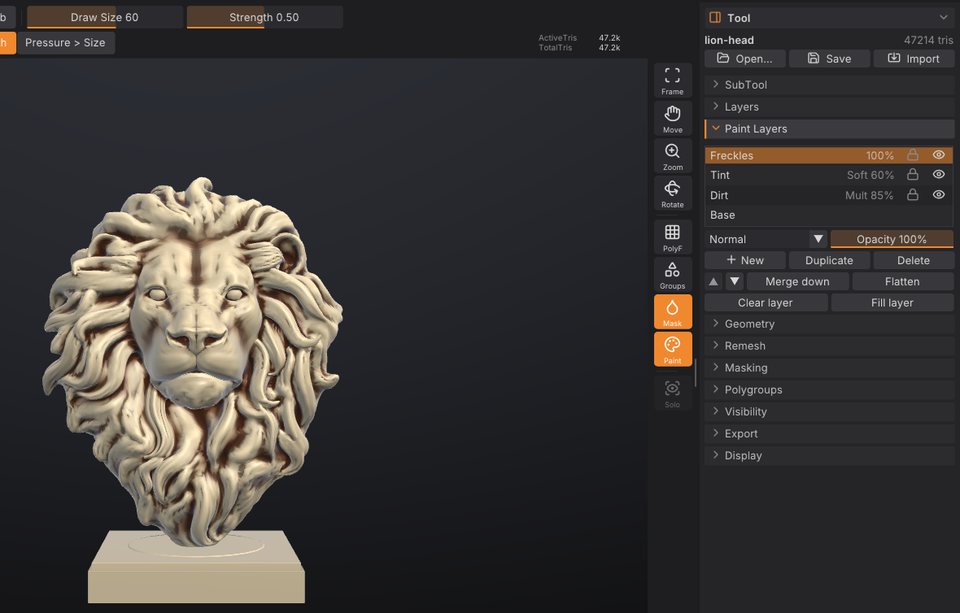
Polypaint now has layers, like Photoshop: each SubTool can have a stack of colour layers with their own opacity, visibility, lock and blend mode (Multiply, Screen, Overlay, Soft Light, Add and more). Painting on a layer never destroys what's underneath, and you can merge, flatten, duplicate and reorder layers. ZBrush has never had this. Find it in Tool > Paint Layers, and see Paint layers.
Easier to install#
The download links now always get the newest version, and there are one-command installers for Windows, macOS and Linux.
Version 0.3#
- SubTools: several separate meshes in one scene. Append, duplicate, split, merge, solo, and Alt+click to select. See SubTools.
- A ZBrush-style interface: shelves around the canvas, alphabetical palettes, the LightBox (,), the brush, stroke, alpha and material pickers, hold-Ctrl help on every control and a command palette (F3). See The interface.
- Graphics tablets: pen pressure, the eraser end and pen buttons. See Sculpting and brushes.
- A brush library with brush codes to share and a community gallery. See Brush Lab and sharing brushes.
- ComfyUI workflows for image and text to 3D. See Image and text to 3D.
- This user guide, built into the app (Help > User Guide, Shift+F1).
Version 0.2#
- Masking, polygroups and visibility, and polypaint with MatCaps.
- New brushes: DamStandard, ClayBuildup, SnakeHook, Trim, Layer and Nudge, with strokes and alphas.
- Project files with autosave, recent files and QuickSave, and GoZ exchange with ZBrush.
Version 0.1#
The first release: sculpting with symmetry and sculpt layers, voxel remesh and decimation, game-ready LOD chains and Send to Unreal, image and text to 3D with free AI models, Gaussian splats, OpenUSD, and scripting from the command line, Python and AI agents.